
Teaching in an Immersive Synchronous Lecture Hall
Engage & Connect Across Distance
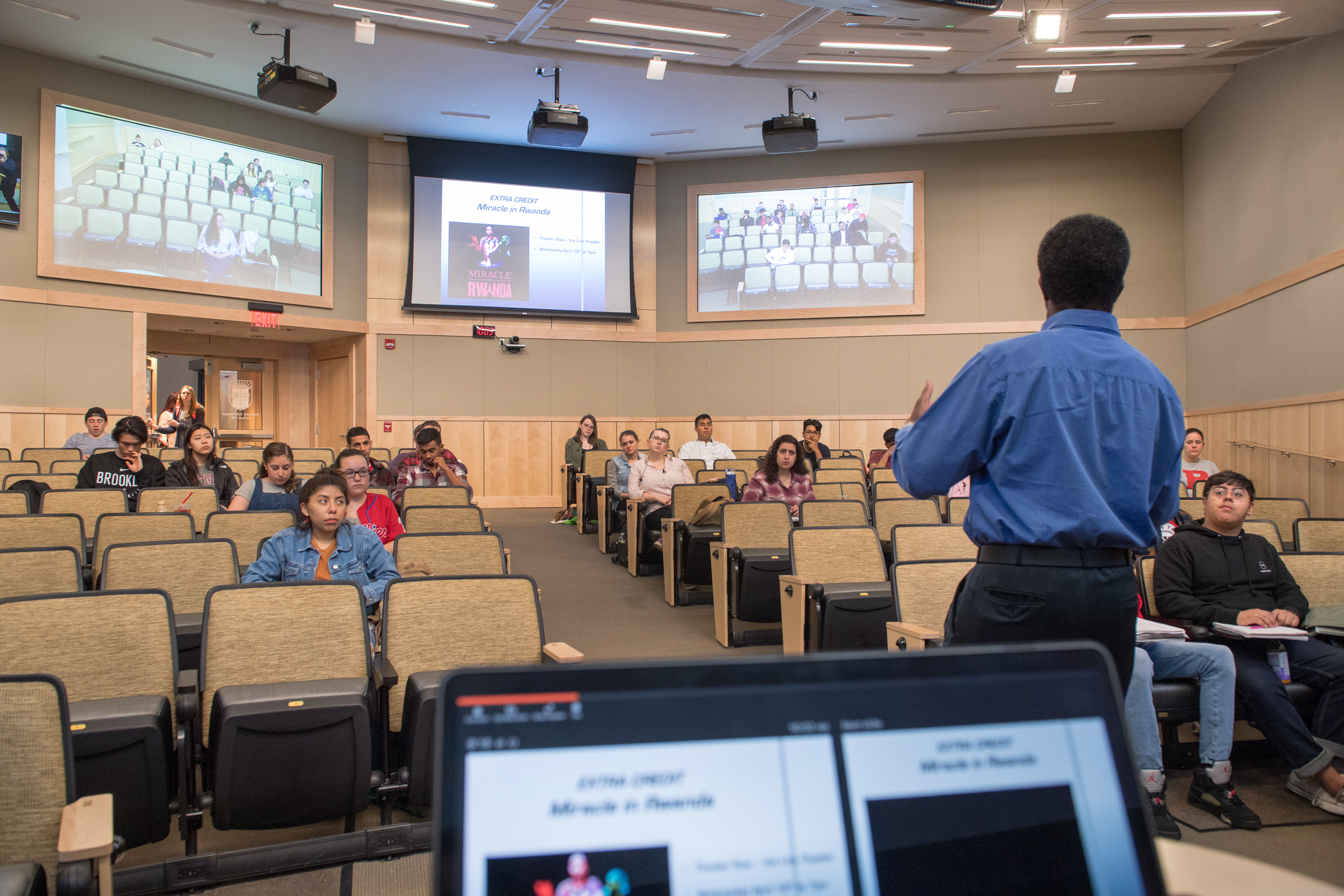
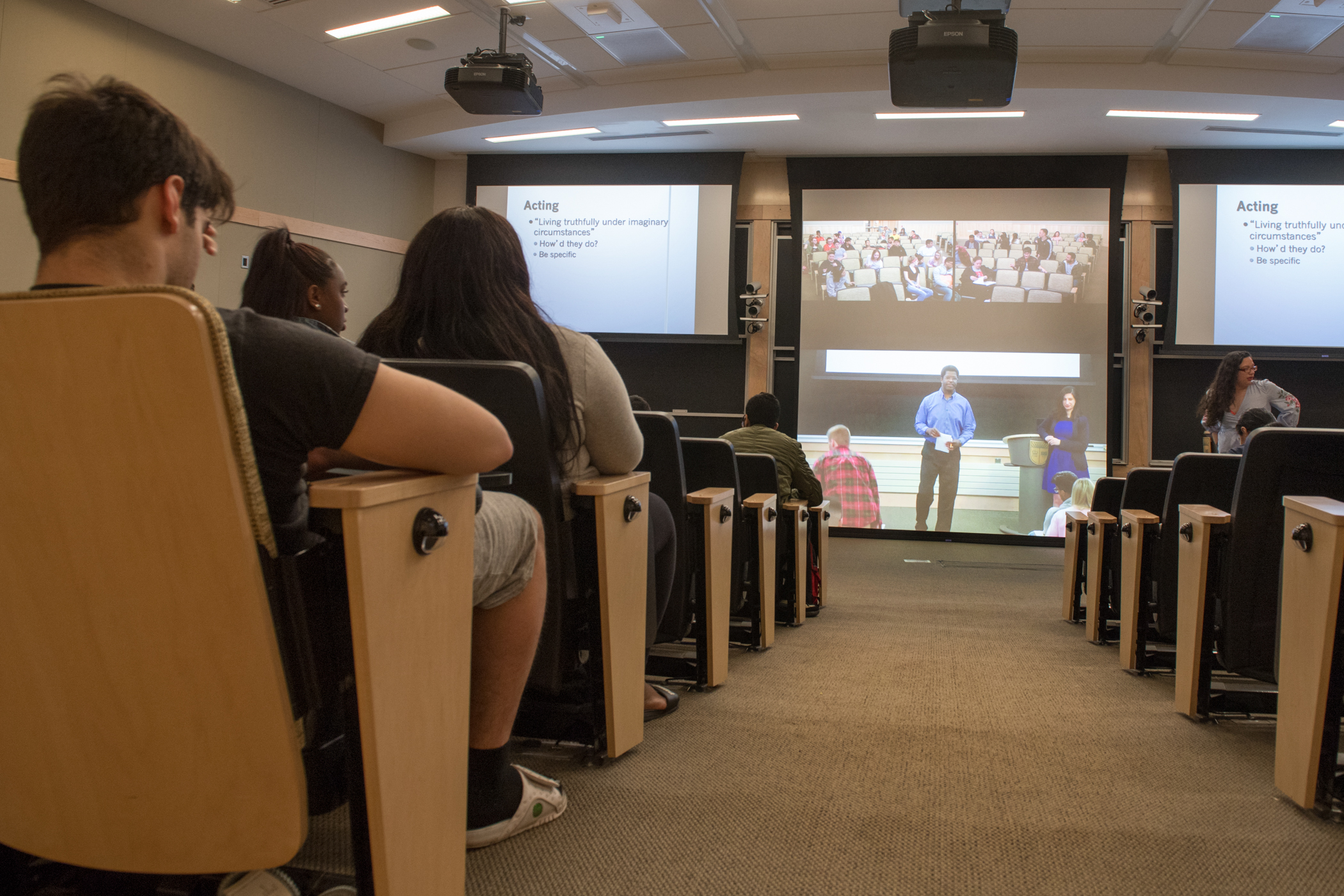
Immersive Synchronous Lecture Halls are designed to connect two classrooms so that an instructor in one room can teach to students in both rooms. Our rooms are immersive, meaning they are designed to create an experience for remote students that mirrors the experience of students in the instructor’s rooms. While we strive to provide ISLHs that do not require faculty to change how they teach, there are some differences that require adapting to in order to succeed in these rooms. The following considerations reflect the experience of Rutgers faculty and academics teaching via similar methods at other institutions. Click on each consideration for more information. Please contact us with any suggestions for issues or solutions that could benefit the Rutgers community. For technical instructions on operating the rooms’ equipment, visit the Immersion Lectern page.
ISLH Teaching Tips
-
As you might do with students at the rear of any large space, students in the “catch” room may need to be drawn into discussions. In the beginning of the semester, proactively call on and encourage interactions with “catch-side” students. This will impress upon them that they are able to engage with the instructor.
The cameras are oriented so that if you look at a student on the screen at the back of their room, it will appear to them that you are looking at them. However, to reinforce this, consider indicating which room the student is in that you are calling on. By calling on “the student with their hand up in Loree” or “the student in Wright Lab 128’s second row,” students will begin to trust that where you are looking indicates who you are calling on. You will also be able to call on students in the “catch” room if you ask them to raise their hands high.
There are also several approaches you can take to avoid creating a feeling that “catch” students are second-class students. Try to avoid scanning your classroom for hands before looking for hands in the “catch” room. Similarly, do not include in-class exercises for students in your room that the other students cannot do. Along those lines, do not use different, unequal terms when referring to your students, such as “you” and “them.”
-
You may find that some students do not attend class in the room for which they registered. This can be especially problematic during exams. To prepare for this, you can ensure that each room has extra exams or emphasize that students who go to the wrong room will not be able to take the exam.
While instructors can still answer questions from students in the “catch” room, some instructors may wish to provide a more private way to discuss questions. Instructors have done this by exchanging cell phone numbers with their Teaching Fellows. They can either text or talk with the student, sometimes using the Fellow as an intermediary.
If you wish to connect with the other room, but turn off the audio, you can do so by selecting “Mute Microphones” on Rutgers Room Control.
-
So that students in the both rooms can always participate, their microphones are always active. While they are calibrated to pick up students voices well while minimizing other sound, they will still hear some of the louder noises that students make. To reduce any distraction from ambient noise from students getting settled at the start of class, when you are ready to start, ask students to settle in an take out anything they need for class.
At the end of class, the sound of students packing up and leaving can also be distracting. To minimize this distraction, make it clear that students are not yet excused if you still have an announcement to make or would like to allow questions. Otherwise, some students assume that the end of the lecture is the end of class and will begin to leave.
The sound of the classroom doors closing can also be distracting. You can help reduce this noise by asking students to gently close the door if entering or leaving while class is underway.
Finally, in classes that break into group discussion, some instructors use consistent methods – such as having everyone clap – to return everyone’s attention to them.
-
While the Synchronous Lecture Halls have multiple projectors, these are used to display the audience camera feeds alongside any presentation materials the instructor shares. As a result, unlike other DCS rooms with multiple projectors, instructors can only project one content source (e.g… computer, document camera) at a time.
-
Gesturing at projected material will have the desired effect. However, if you use a laser pointer, or some other pointer, to direct attention to certain parts of a presentation you have put on the screen, students in the catch room will be unable to see it. Instead, you may use the cursor on the lectern’s computer or your laptop.
-
The Synchronous Lecture Halls do not have DVD/Blu-ray players due, in part, to content protection issues that arise when broadcasting video to multiple locations.
It is possible, that some video played on the computer will not show in the catch room due to content protection embedded in the video. While DCS testing has not been able to recreate this issue, and has found that popular streaming methods like Netflix and YouTube have played without issue, if you would like to show video from the computer during your class, we recommend testing it beforehand. If you would like to test it with DCS staff, please contact us. If the video is not able to transmit to the other classroom, you can still use the video by providing the Teaching Fellow with a copy. The Teaching Fellow can then play the video in “local” mode while the instructor plays it in their room via “local” mode.
