
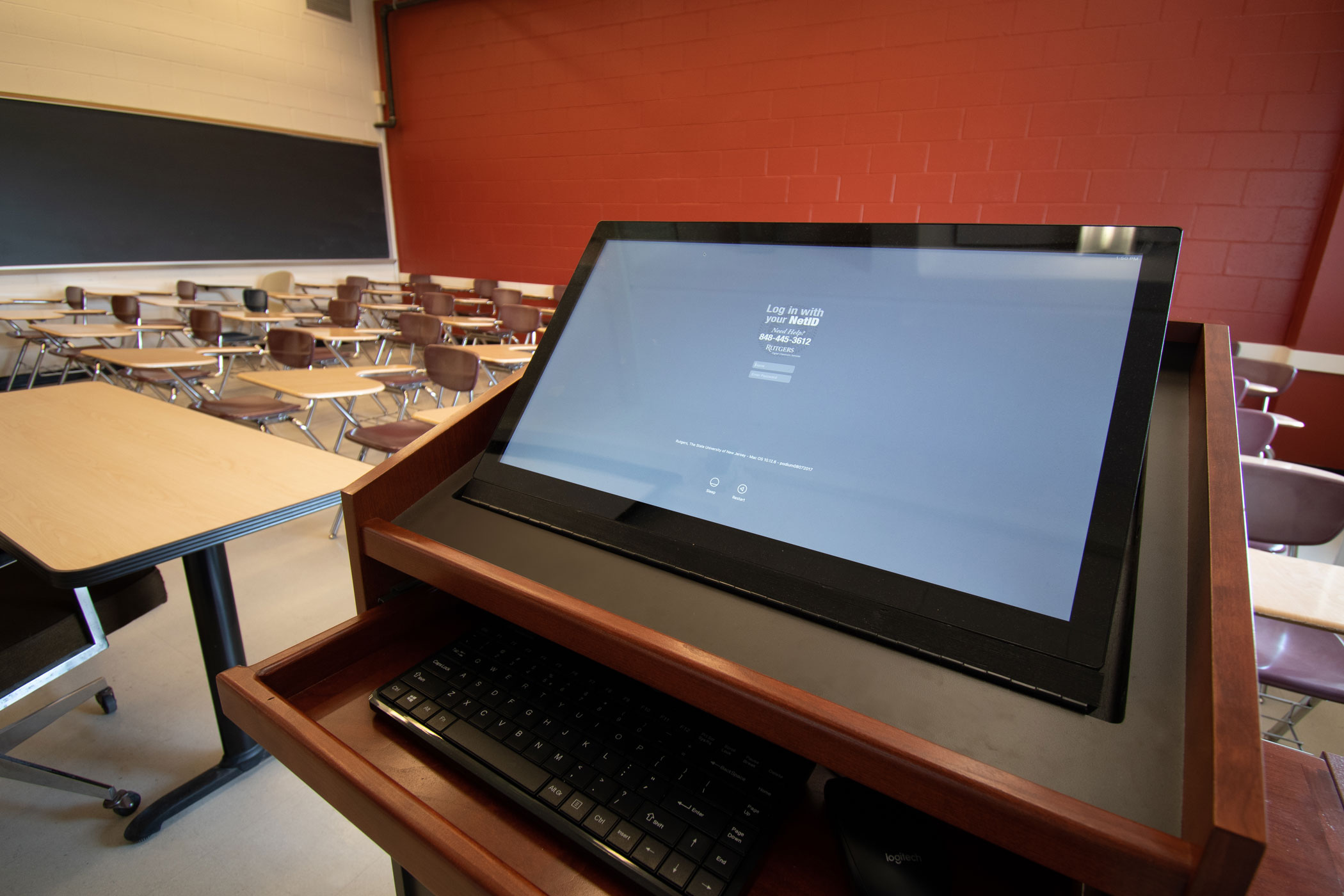
Digital Classroom Lectern
Streamlined Design for Small Classes
The Digital Classroom Lectern, or “DCL,” is our standard system for small classrooms. The Digital Classroom Lectern enables instructors to present using a built-in Mac computer or by connecting personal portable devices. Like all Digital Classroom Systems, the DCL is connected to high-definition displays and speakers and is operated using Rutgers Room Control. Unlike other DCS systems, the Lectern has a smaller footprint that provides faculty easy access without cluttering up valuable teaching space. The lectern and touchscreen may also be raised and lowered to an optimal height.
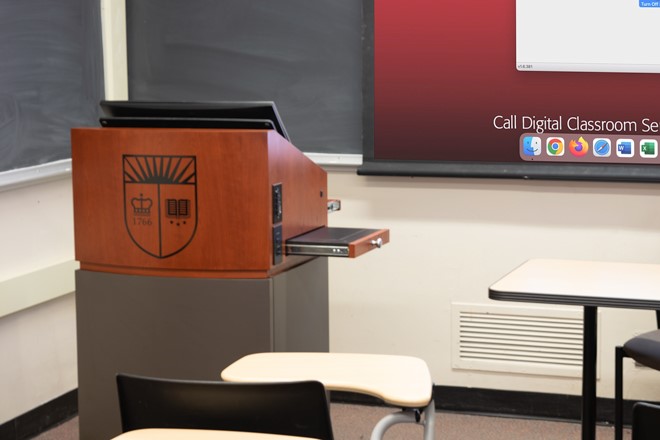
Explore the Digital Classroom Lectern
We have various resources available to help you learn about and use the Lectern.
-
Available in all Lecterns
- Mac computer, including:
- a dedicated Internet connection
- four USB ports
- keyboard and mouse
- HDMI cables for projecting laptops, phones, or tablets
- Pull-out laptop shelf
- RUWireless
Available in Some Lecterns
- Blu-ray player capable of playing:
- Blu-ray discs
- DVDs
- audio CDs
- Presenter camera and microphone that can be used to videoconference and lecture capture
Available by Request
- Air Mouse
- Hand-held trackball mouse
- USB hub, allowing users to connect more than three USB devices to the podium
- VCR or international VCR
- Webcam and tripod
- Wireless pen mouse
- Wireless presenter, used to advance slides or control the mouse
Visit the Request Form page for more information and to reserve this equipment.
- Mac computer, including:
-
Using the Digital Classroom Lectern
Projecting from a Laptop
Projecting from a Phone or Tablet
Using BigBlueButton in a Videoconference & Lecture Capture Space
Using Kaltura to Record in the Classroom
Using Webex in a Videoconference & Lecture Capture Space
Using Zoom in a Videoconference & Lecture Capture Space -
The following rooms are equipped with a Digital Classroom Podium. For panoramic photos and detailed lists of classroom features and technology, please click on an individual room.
Allison Road Classroom: 108, 110, 328
Art History Hall: 100
Blake Hall: 101
Beck Hall: 221
Campbell Hall: A1, A2
Frelinghuysen: A1, A2, A3, A4, B6
Graduate School of Education: 025B
Hickman Hall: 114, 129, 202, 213, 207
Ruth Adams Building: 109B, 110A, 204, 207, 208
School of Communication & Information: 101, 103, 201, 203
Science & Engineering Resource Center: 204, 206, 211, 212, 216, 217, 218, 220
Thompson Hall: 206
Tillett Hall: 207, 209 -
The following apps are available on all Hub computers. They may be opened by selecting them in the dock or by clicking on the blue applications folder and choosing the app from the list. If the Hub does not have software you would like to use in your class, contact us.
BaiBoard
Blu-ray Player
Cisco Webex Meeting
Eclipse
EndNote X9
Firefox
GarageBand
GeoGebra
Google Chrome
Google Earth
Hovercam Flex
iClicker Cloud
jEdit
Kaltura
Keynote Creator Studio
Lifesize Cloud
Microsoft Excel
Microsoft OneDrive
Microsoft OneNote
Microsoft Outlook
Microsoft PowerPoint
Microsoft Teams
Microsoft Word
Quicktime
Numbers Creator Studio
Pages Creator Studio
PollEV Presenter
Prezi Next
R
RStudio
Safari
Skype
Solstice
VLC
Zoom
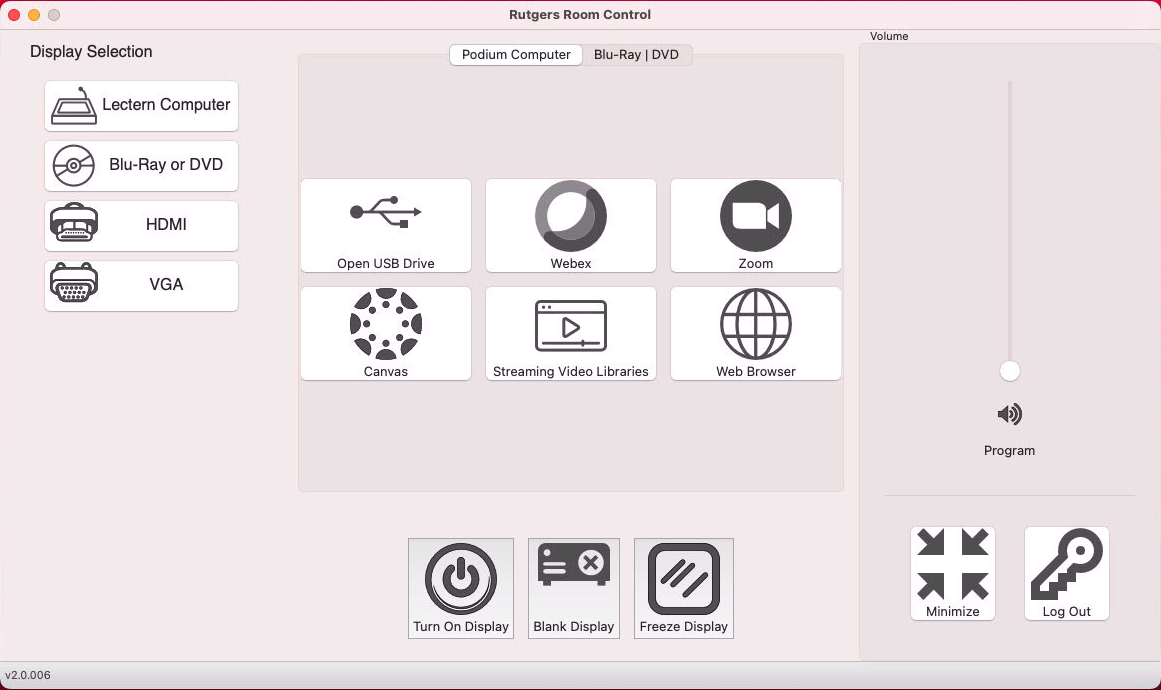
Rutgers Room Control
After logging into a Lectern, Rutgers Room Control will open. You can select a source to display using the buttons on the left. Volume may be adjusted using the slider on the right.
Looking for More?
We’ve put all of our instructional information and one place for easy browsing.
