
Collaborative Instructor Hub
A System for Active Learning
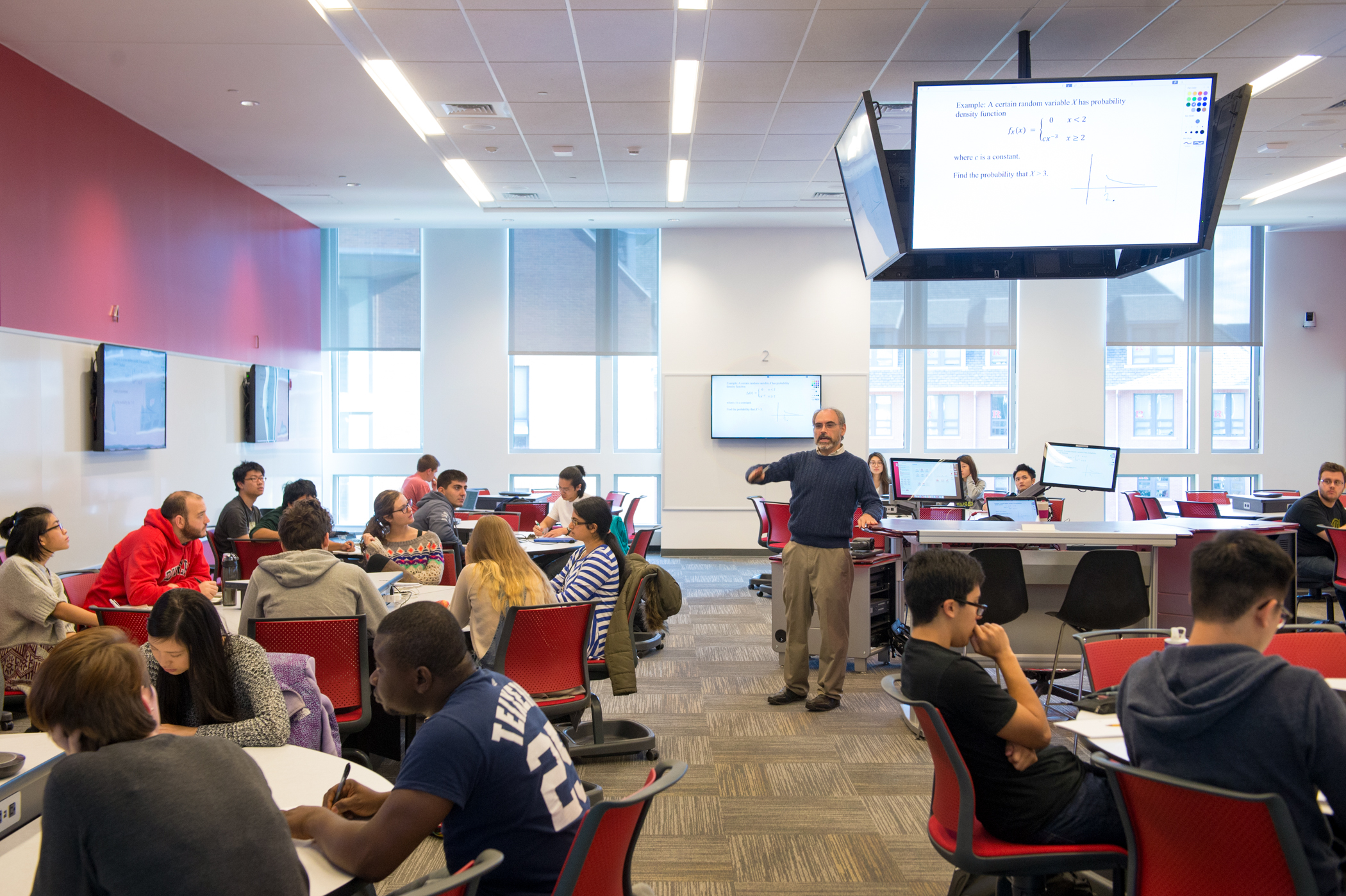
The Collaborative Instructor Hub is the system used in Active Learning Classrooms to present materials and enable students to display and share content from their tables. In Active Learning Classrooms, students sit in groups and are able to send images from their laptops, phones, or tablets to a group monitor. The Hub gives the instructor the ability to control these monitors and share images that students are displaying with the rest of the class. Because Active Learning Classrooms are designed for interaction, Collaborative Instructor Hubs are located in the center of the room. The Hub includes an instructor table that can be electronically raised for those who wish to stand while teaching and lowered for sitting. A moveable monitor can be used to control the system and use the computer while a second moveable monitor can be used to preview and view images from other displayed sources. For more information on the Collaborative Instructor Hub, please view the sections below.

Explore the Collaborative Instructor Hub
We have various resources available to help you learn about and use the Hub.
-
Available in all Hubs
- Mac computer, including:
- a dedicated Internet connection
- USB ports
- keyboard and mouse
- Document camera
- HDMI connections and cables for projecting laptops, phones, or tablets
- Solstice wireless display sharing for both instructor and student laptops, phones, and tablets
- Multiple displays, allowing display of one source on multiple screens or different sources on each screen
- Preview monitor, enabling presenters to view displayed images on the podium without having to turn around
- Control of images displayed at student tables
- RUWireless
Available in Some Hubs
Interactive display for annotation, on-screen writing, computer control, and wireless display sharing
Available by Request
- Air Mouse
- Blu-ray player capable of playing:
- Blu-ray discs
- DVDs
- Audio CDs
- Hand-held trackball mouse
- USB hub, allowing users to connect more than three USB devices to the podium
- VCR or international VCR
- Webcam and tripod
- Wireless pen mouse
- Wireless presenter, used to advance slides or control the mouse
Visit the Request Form page for more information and to reserve this equipment.
- Mac computer, including:
-
The following apps are available on all Hub computers. They may be opened by selecting them in the dock or by clicking on the blue applications folder and choosing the app from the list. If the Hub does not have software you would like to use in your class, contact us.
BaiBoard
Blu-ray Player
Cisco Webex Meeting
Eclipse
EndNote X9
Firefox
GarageBand
GeoGebra
Google Chrome
Google Earth
Hovercam Flex
iClicker Cloud
jEdit
Kaltura
Keynote
Lifesize Cloud
Microsoft Excel
Microsoft OneDrive
Microsoft OneNote
Microsoft Outlook
Microsoft PowerPoint
Microsoft Teams
Microsoft Word
Quicktime
PollEV Presenter
Prezi Next
R
RStudio
Safari
Skype
Solstice
VLC
Zoom
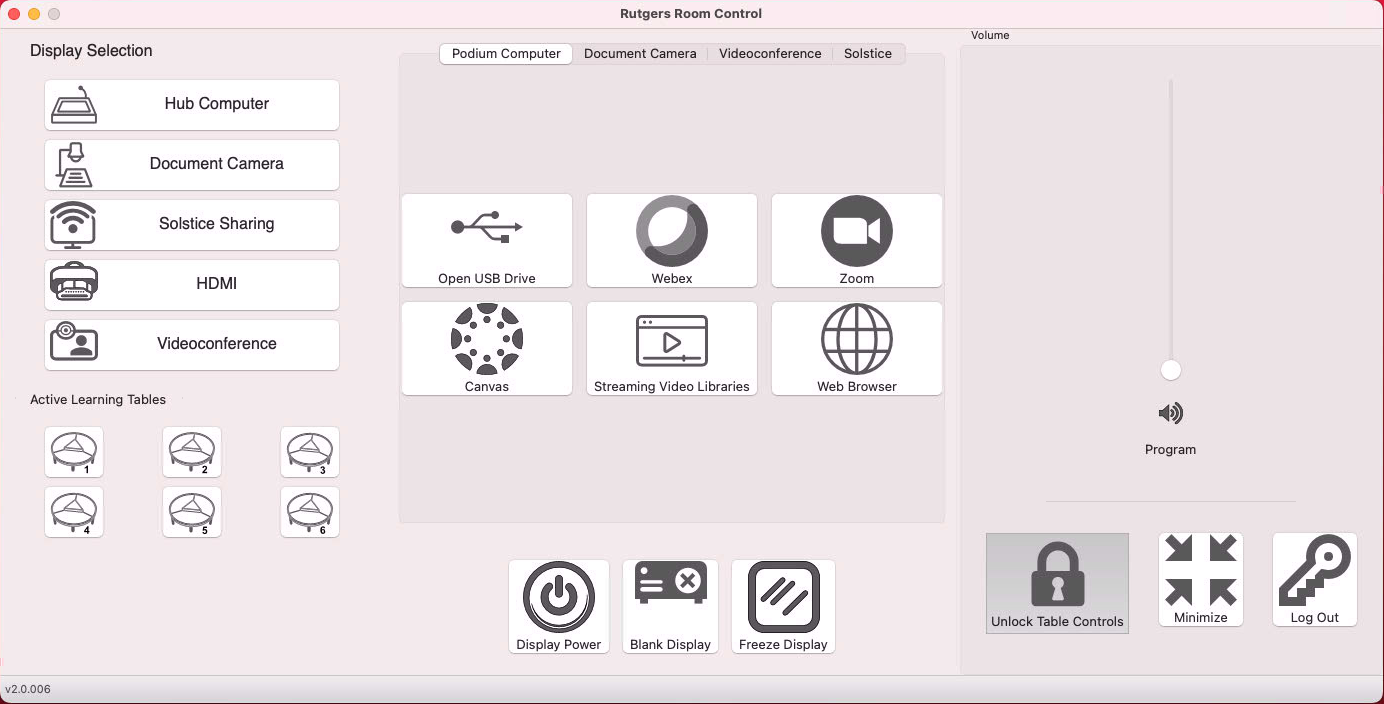
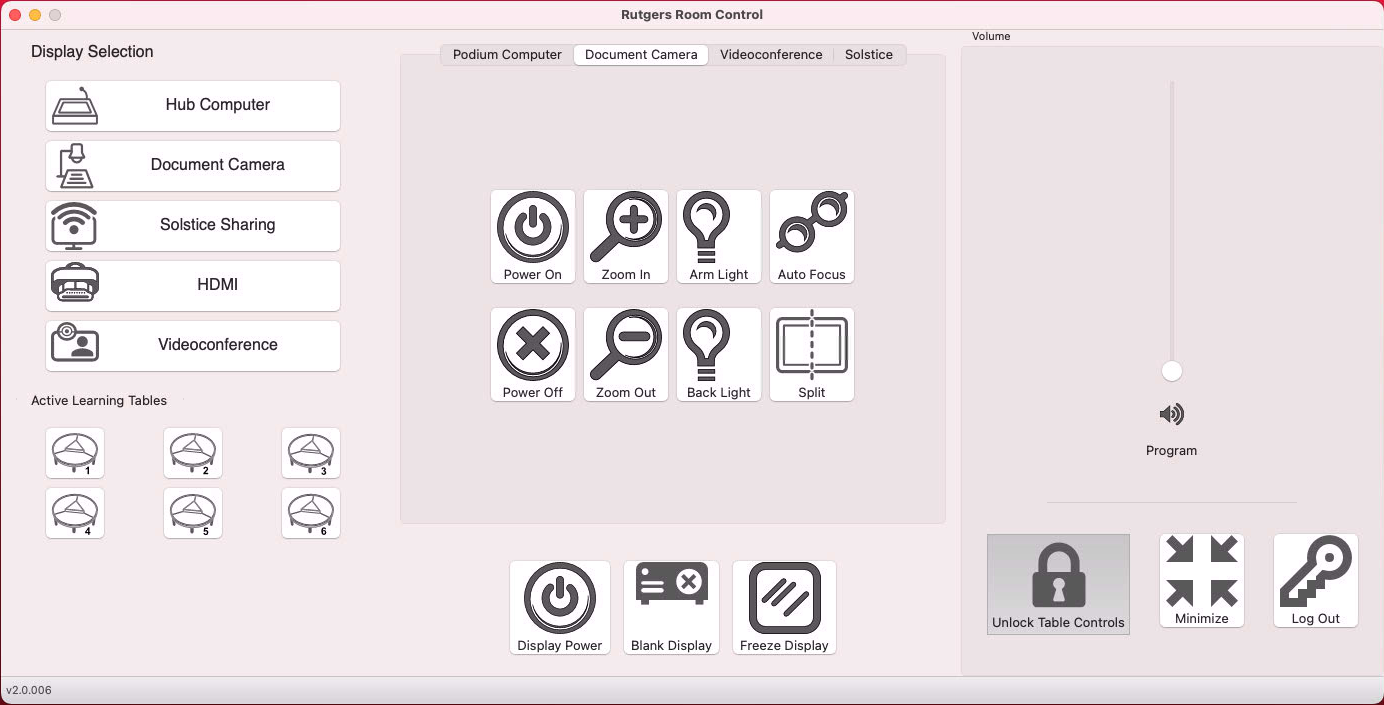
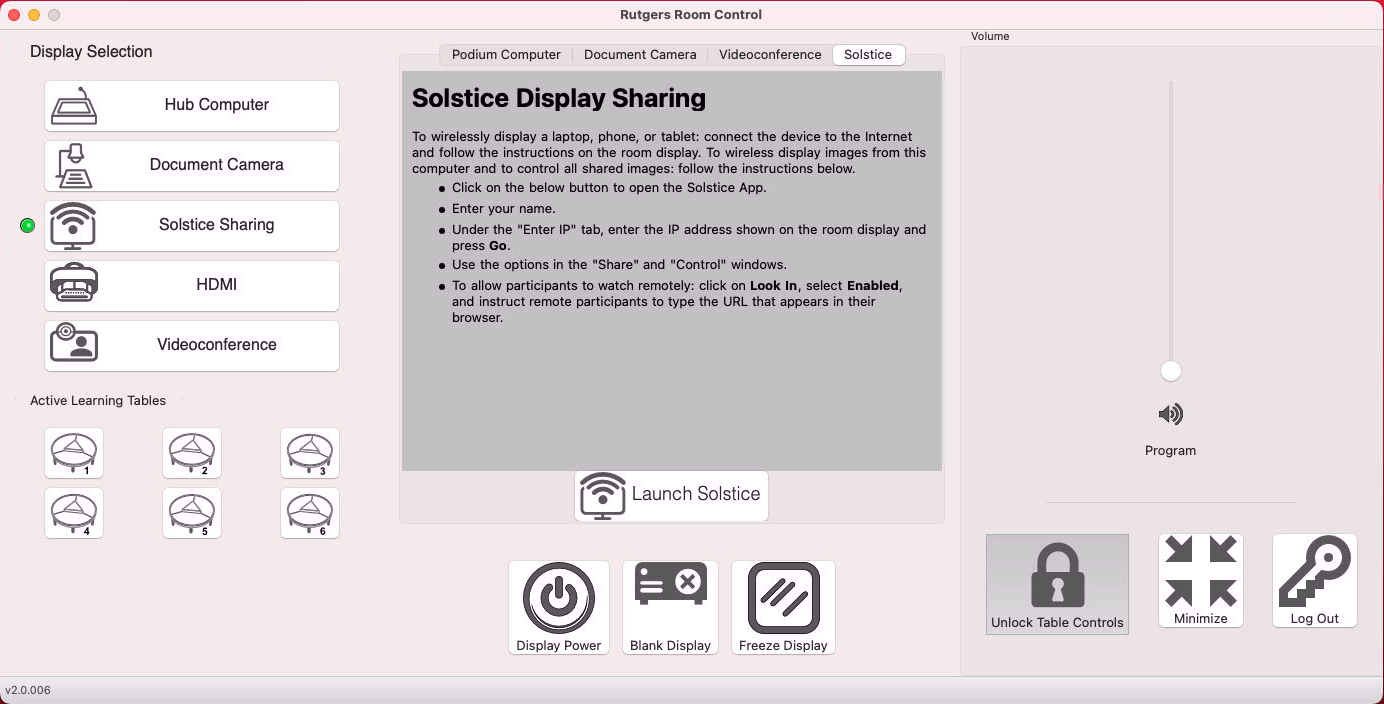
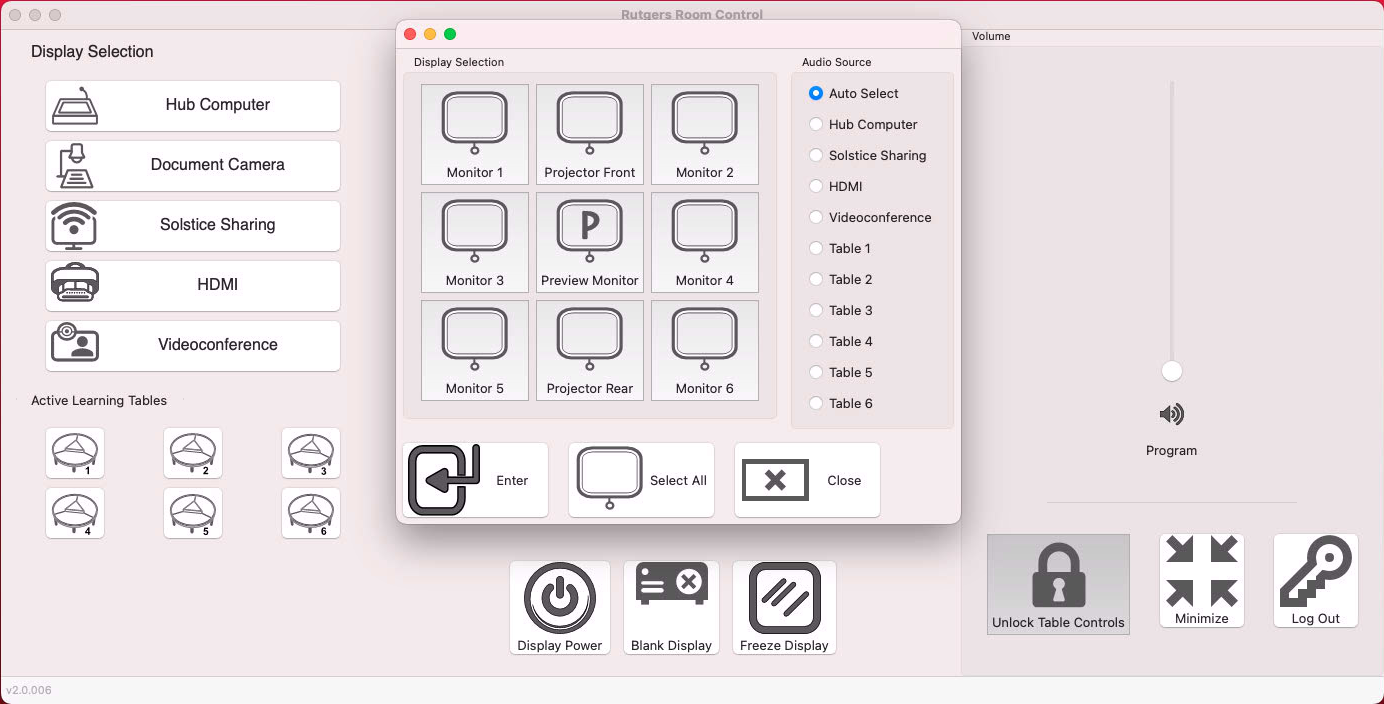
Rutgers Room Control
Rutgers Room Control is an application designed and refined in-house to control Digital Classroom Systems. Regardless of their classroom and type of system, Rutgers instructors can expect to find a consistent user interface.
Looking for More?
We’ve put all of our instructional information and one place for easy browsing.
