
Getting Started with Capture
Lessons on Demand
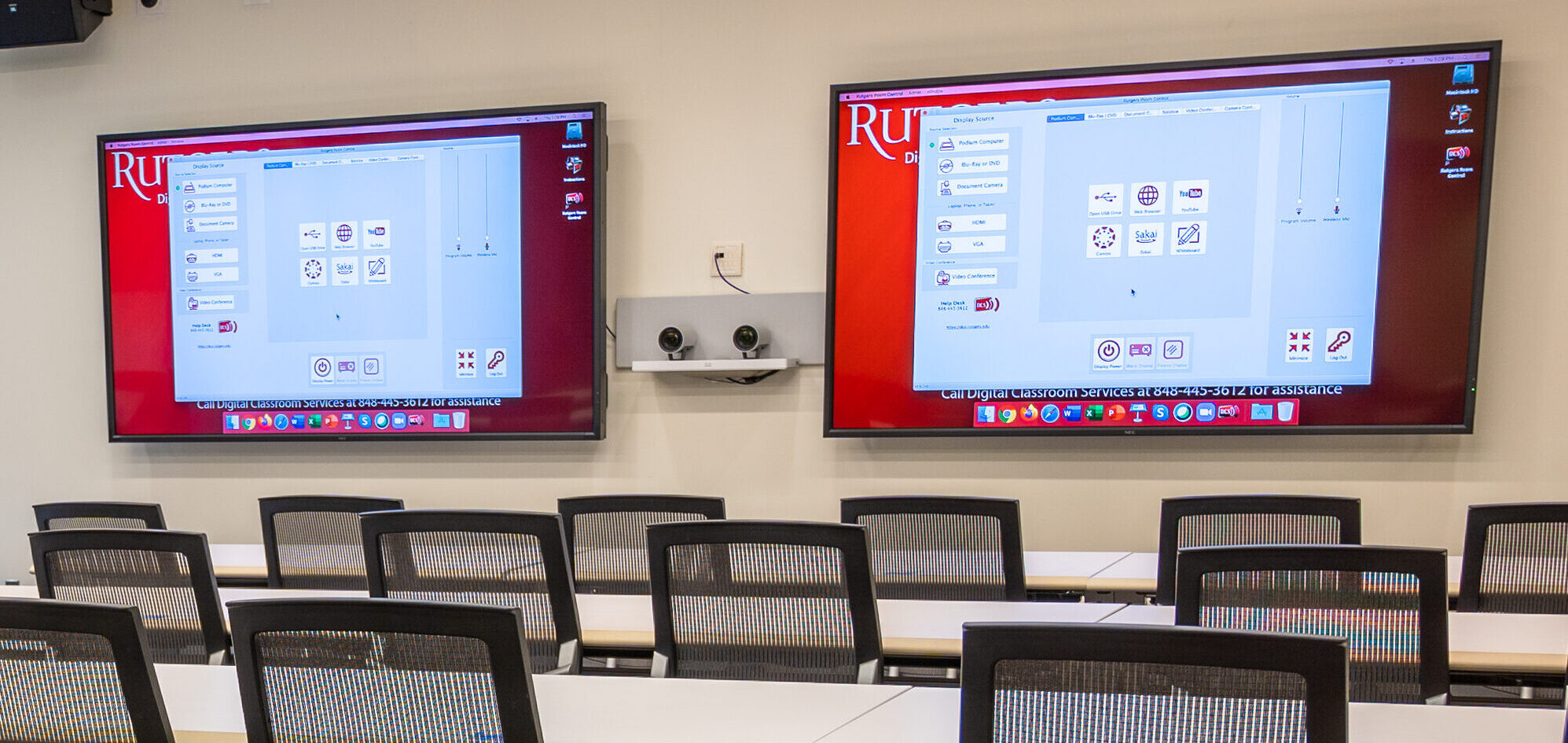
Instructors may opt to record their classes to accommodate students that cannot attend or for many other pedagogic reasons. DCS can help you record in any of your classrooms. The solution used to record will vary depending on your classroom type and your personal preference.
To begin, look up your classroom in the Classroom Finder. Once you know your room’s capability, click on it below to view your various options. If you are not sure where to begin, fill out a Request Form. We will use the information you provide to work with you to develop a plan.
Accordion Content
-
In these rooms you can capture the video and audio of yourself and students, as well as presentation materials. DCS supports four modes of recording. Please select the instructions for your preferred method below.
Using Zoom in a Videoconference & Lecture Capture Space
Using Webex in a Videoconference & Lecture Capture Space
Using BigBlueButton in a Videoconference & Lecture Capture Space
Using Kaltura to Record in the Classroom -
These rooms have cameras and microphones that can be used to record the instructor, as well as the capability to capture class content such as slides.You can use Zoom, Webex, Kaltura, or BigBlueButton to lecture capture. Click on your preferred option below for detailed instructions:
Using Zoom in a Videoconference & Lecture Capture Space
Using Webex in a Videoconference & Lecture Capture Space
Using BigBlueButton in a Videoconference & Lecture Capture Space
Using Kaltura to Record in the Classroom -
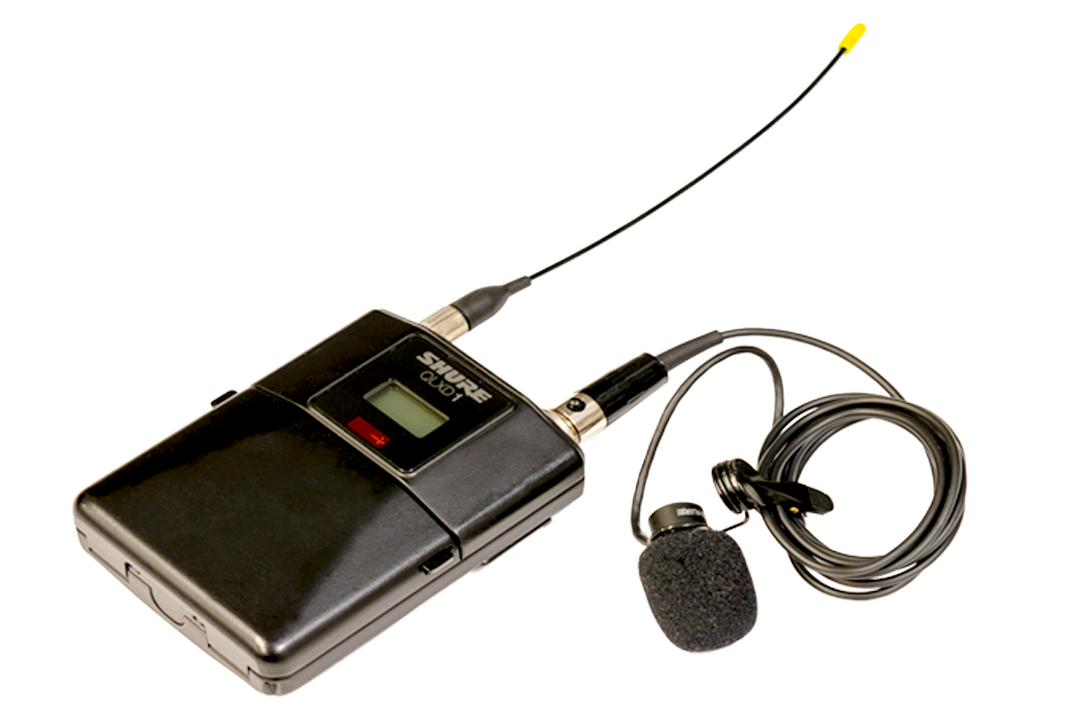
Audioconference and Lecture Capture Spaces have microphones that instructors can use to record their audio while also having the capability to record content from the system’s computer, such as slides. Choose from your preferred option below for detailed instructions:
Using Zoom in an Audioconference & Lecture Capture Space
Using Webex in an Audioconference & Lecture Capture Space
Using BigBlueButton in an Audioconference & Lecture Capture Space
Using Kaltura to Record in an Audioconference & Lecture Capture RoomIf you would also like to capture video of the instructor, please fill out a Request Form and we can provide a camera.
-
If your room does not have any built-in conference and capture equipment, please fill out a Request Form. DCS has portable equipment that can be used to help you make a recording that include your audio, video, and class content.
Looking for More?
Visit the Office of Information Technology’s application-specific pages for more detailed guidance on recording.
