
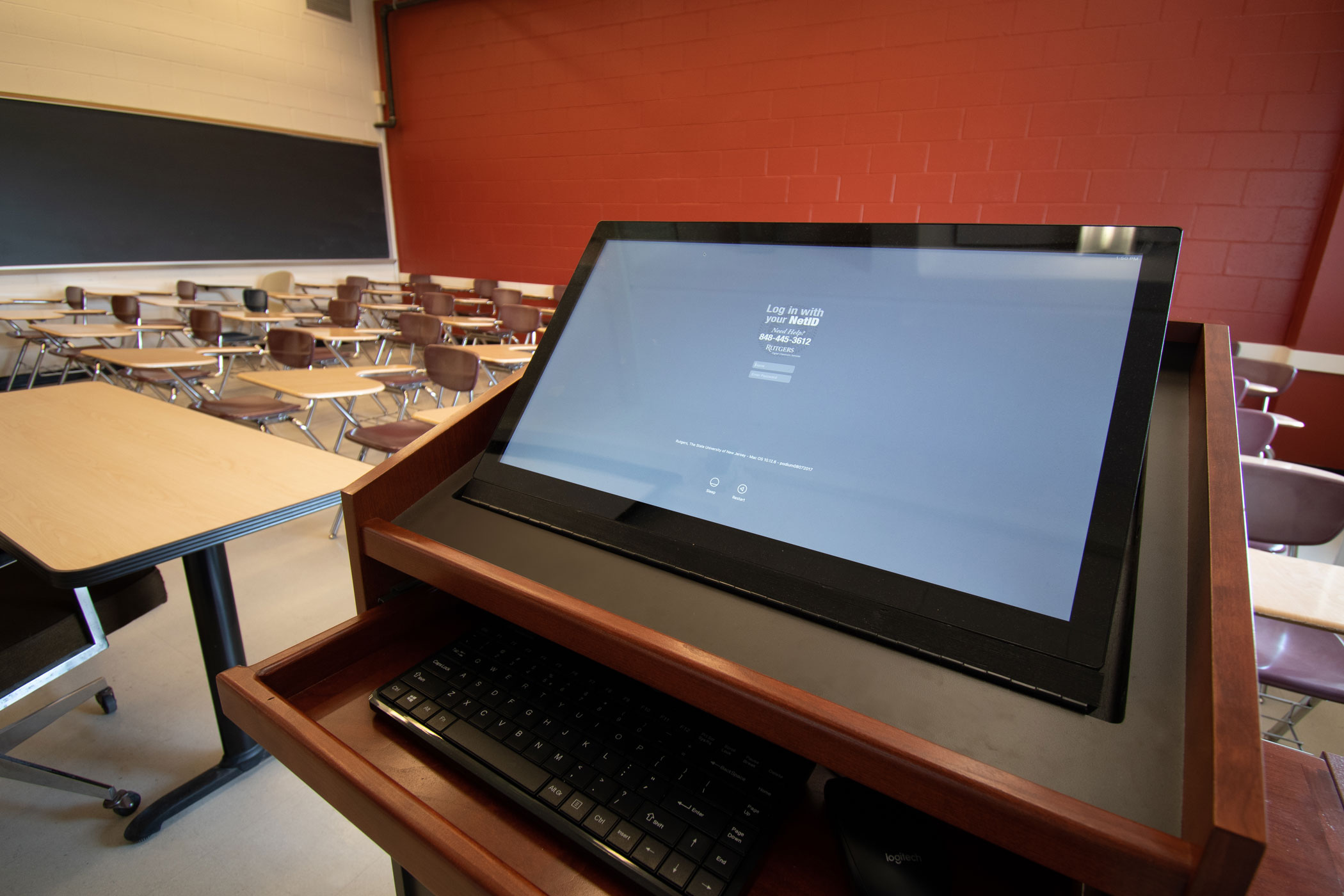
Using the Digital Classroom Lectern
Accordion Content
Overview
The Digital Classroom Lectern is DCS’s standard presentation system for small classrooms. The Lectern provides the ability to display presentations from a built-in Mac Mini, a Blu-ray/DVD, and a laptop or other personal device. The Lectern is controlled by Rutgers Room Control which can be used by pressing the touchscreen or using the mouse. Follow the instructions below to use your classroom’s Digital Classroom Lectern.
-
- You can adjust the height of the Lectern by using the switch on the left side. The switch on the right side of the Lectern can be used to adjust the angle of the touchscreen.
- On the Lectern, if the screen is black or displaying the screen saver, press the spacebar. The keyboard is located in the pull-out tray. Wait for the login screen to appear. It may take approximately five seconds.
- When the login screen appears, enter your Rutgers NetID and password. Press ENTER.
- After you have logged in, the Rutgers Room Control window will automatically open. This is the dashboard from which you control the system. It can be opened at any time by selecting the DCS logo on the desktop or application dock at the bottom of the screen.
- The first column allows you to select the source you would like to display.
- The center section is divided in to two parts. The top portion contains more detailed controls. These controls will change depending on what source you have selected in the first column. The bottom portion contains projector controls that will always be available.
- The third column contains volume control and a log off button.
- You may make selections on Rutgers Room Control by touching the touchscreen or using the mouse.
-
- Once you have logged in and are ready to project, select Lectern Computer in the first column.
- Once the projector has warmed up, the computer image will appear on the screen. Now, everything you do on the computer will be projected. There are multiple ways to access your presentation.
- USB Drive: To access a presentation which you have brought to class on a USB drive, insert your USB drive into the USB port on the right side of the lectern. Select the Open USB Drive button on the Podium Con-troller. A pop-up window will appear containing the contents of your USB drive. Find your presen-tation and double-click on it. Your presentation will now open. To eject your USB drive, drag the USB drive icon on the desktop to the trash icon on the dock.
- Internet: select the Web Browser button. A web browser will open allowing you to access web sites.
- Other Programs: to view all programs available, select the blue “A” folder in the dock located along the bottom of the screen. Select the program you would like to open.
- To control the volume level, adjust the volume by dragging the circle or tapping on the slider.
-
Some classrooms have a Blu-Ray/DVD located below the keyboard tray. It is capable of playing Blu-ray discs, DVDs, and audio CDs.
- To begin, select Blu–Ray or DVD on the first column of Rutgers Room Control.
- Press the Open/Close button. The disc tray on the Blu-ray drive will open after a few seconds. Place your disc on the tray.
- Press the Open/Close button again. The tray will close, please do not press it in.
- Select the button which corresponds to the type of disc you are playing: Blu-ray, DVD, International Blu-ray, or International DVD.
- A media player will open: o To play a Blu-ray, press the Open Disc but ton and double click on your disc. Please wait if it does not immediately appear.
- To play a DVD, press the play button.
- To play an international Blu-ray or inter national DVD, in the menu bar, choose File, then Open Disc, and – after your disc has loaded – Open.
- Use the buttons in the media player to control playback, choose menu options, and adjust the volume. If you have not already, make sure to raise the volume in the Rutgers Room Control as well.
- To fill the entire screen with the video, press the full screen icon in the media player. In full screen mode, you can access playback controls by moving the cursor to the bottom of the screen. To exit full screen mode, press the Esc key on the keyboard.
- When you are finished playing the disc, close the media player by pressing the red dot in the top left corner of the window. Press Open/Close in Rutgers Room Control. Retrieve the disc and press Open/Close again.
-
- It is possible to present from a laptop, tablet, phone, or other portable device. The podium includes an HDMI cable and, in some rooms, a VGA cable (or 15 pin). Portable devices use a variety of display ports, many of which are unique to that device. Therefore, if your device does not have a port that works with the cable(s) available in the room, you will need to provide a VGA or HDMI adapter to use your device. Connect this adapter to your device’s display port.
- The VGA and HDMI cables are kept in the cable cubby below the keyboard. Please remove the appropriate cable.
- Connect one end of the cable to the HDMI or VGA port on the right side of the lectern. If you are using the VGA cable, connect the audio portion of the cable to the audio port next to the VGA port.
- Connect the other end of the cable to your device or adapter. If using the VGA cable, plug the audio portion in to your headphone jack.
- On Rutgers Room Control, select the appropriate button, depending on which cable you are using: VGA or HDMI.
- Turn on your device.
- To control the volume level, adjust the slider by dragging the circle or tapping on the slider. You will also need to raise the volume on your device.
Looking for Help Using Technology?
Visit our library of how-to resources.
